Tax Configuration for E-commerce
Overview
The Tax Engine in Vanilo Cloud handles automated calculation of sales taxes such as VAT, GST, and other regional tax types. It ensures that your shop correctly applies taxes during checkout, especially for cross-border or cross-state transactions where compliance rules differ.
For most domestic sales, taxes may not need special configuration — but when selling internationally or across jurisdictions, the Tax Engine makes sure you stay accurate and compliant.
Tax Basics
Taxation in Vanilo Cloud is based on a structure built around Tax Categories and Tax Rates. Each product is assigned a Tax Category (for example, “standard”, “reduced”, or “exempt”), which defines how it should be taxed. The Tax Rates then determine the actual percentage to apply, depending on the buyer’s taxation zone (country, state, or region). During the checkout process, Vanilo automatically matches the product’s category with the buyer’s location to calculate the correct tax rate — ensuring compliance without manual adjustments.
Tax Categories
Tax Categories define how different types of products or services are treated for taxation purposes. They act like "labels" that group items sharing the same tax behavior — for example, Standard, Reduced, or Tax Exempt.
Each product in your shop can be assigned to one tax category so the system knows which tax rules to apply. Categories themselves don’t contain tax percentages; instead, they serve as the link between your products and the specific Tax Rates that vary by region or country.
This separation makes it easy to manage complex setups — you can change or add regional tax rates without touching your product catalog.
A Tax Category consists of an id, a name and a type. The name can be anything you want, and usually, it is
specific for the business you are operating. So, while "accounting-specific" naming like
"Standard", "Reduced", "Exempt" is perfectly fine, shops typically use more specific category names like:
- "Foodstuff",
- "Tickets",
- "E-books",
- "Clothing",
- "Software",
- "Shipping",
- etc...
This can help you to handle your own particular set of taxation rules, instead of browsing through a list of all available tax categories across countries, states, and their regulations, which can be not only excessive, but also confusing.
As an example, in the European Union there are more than 350 various tax categories in use, many of them are overlapping, and it is not always clear which one applies to which situation. However, people are quite knowledgeable about the taxes within their own particular domain, and they can easily figure out the categorization applicable to their specific situation.
Tax Category Types
Each tax category can be assigned, to a broader, generic type, which can be one of the following:
- Physical Goods (
physical_goods) - Digital Goods/Services (E-Services) (
digital_goods_and_services) - Transport Services (
transport_services) - Telecommunications Services (
telecom_services) - Broadcasting Services (
broadcasting) - Location-Tied Services (
location_tied_services) - Intangible/Remote Services (
intangible_services) - Real Estate Services (
real_estate_services) - Event-Related Services (
event_related_services)
The type field is optional, but certain Tax engines* might need it.
*: The EU VAT engine uses the type field to distinguish whether the shipping or the billing address country needs to be taken into account when looking up the tax rates. Additionally, it uses the type to determine whether the reverse-charge schema is applicable or not.
Tax Rates
Tax Rates define the actual percentage of tax that applies to a product sale, based on both the Tax Category of the product and the Taxation Zone of the buyer. Each rate specifies a tax percentage (for example, 19% VAT for Germany or 5% GST for Canada) and is linked to a combination of category and location.
Upon checkout, Vanilo Cloud automatically looks up the matching rate for the buyer’s region and applies it to the relevant products. This design allows you to easily maintain country- or state-specific rules without duplicating product data — simply define multiple rates for the same category across different zones.
Each Tax Rate consists of an id, name, rate, zone, calculator and configuration. The name can be anything
you
want, and it is something that is usually tied to the particular region or country where the tax rate is applicable.
The rate represents the tax percentage to apply, and the zone is the region or country where the tax rate is applicable.
Tax Calculators
The tax rate configuration applies to the calculator assigned to the given tax rate, which is responsible for calculating the tax amount. The configuration is specific to the calculator type, and is usually a JSON object containing the necessary parameters for the calculator.
Calculators receive the tax subject (product, order, shipping fee, etc) and the configuration from the tax rate and calculate the tax amount(s).
Their configuration is crucial and can vary from one tax system to the other.
As an example, the Canadian Sales Tax Calculator needs to have 3 values configured: the HST, GST, and PST rates to be able to do the calculation. The simple calculator only requires a rate.
Therefore, each calculator has to define its own configuration schema.
Tax Engines
Often times the tax categories, rates, zones, and calculators provide enough flexibility to handle most tax scenarios using the default tax engine.
However, there are situations where additional rules, flags and exceptions are in effect, and this requires additional intelligence to handle. This is where the Tax Engine comes in the picture.
Tax engines are primarily responsible for the tax rate lookup logic, and they represent an additional layer on top of the tax categories, rates, zones, and calculators.
Taxation can also be completely disabled with the "NULL tax engine"
Available tax engines:
- Default (
simple) - None (
none) - EU VAT (
eu) - Canadian Sales Tax (
canada)
Tax Engine Configuration
The default tax engine configuration can be added to the config/vanilo.json file:
{
  "taxes": {
    "engine": {
      "driver": "simple"
    }
  }
}
Additional, engine-specific parameters can be added below the taxes.engine key:
{
  "taxes": {
    "engine": {
      "driver": "eu",
      "enable_vies_verification": true,
      "accept_well_formed_ids_when_vies_unavailable": true
    }
  }
}
Multi-Channel Configuration
In a multi-channel setup, each channel can have a different tax engine driver and parameters configured.
This can be added to the config/channels.json file on a per-channel basis.
The syntax is the same as in the vanilo.json file:
{
  "channel1": {
    "taxes": {
      "engine": {
        "driver": "none"
      }
    }
  },
  "channel2": {
    "taxes": {
      "engine": {
        "driver": "simple",
        "use_shipping_address": true
      }
    }
  }
}
Settings in the channels.json file will override the default, shop-level tax configuration from vanilo.json.
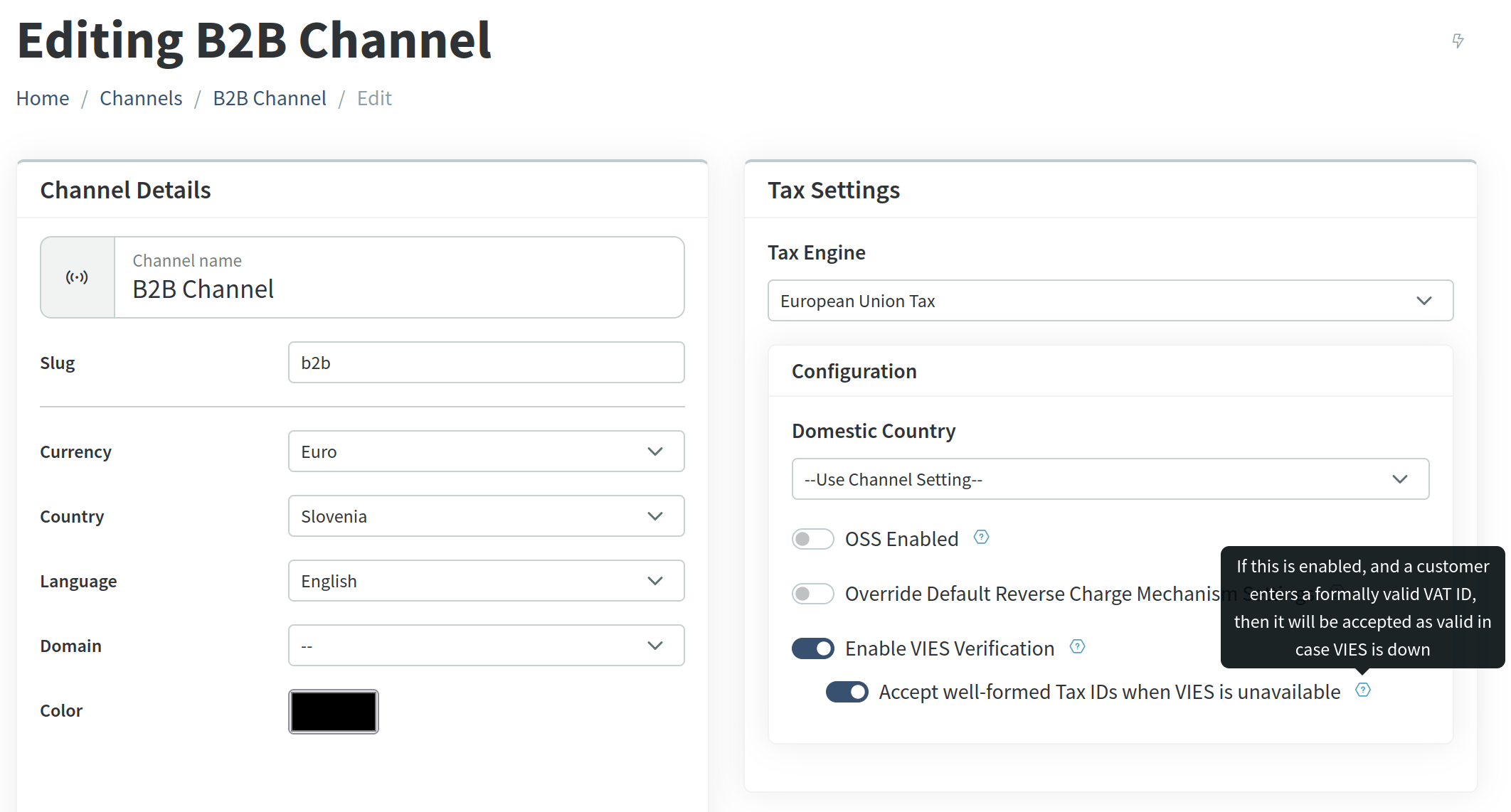
Additionally, the tax engine configuration can be managed on the Admin Panel, on the edit channel page, which will override both the channel-level and the shop-level configuration.
No Tax Handling
The default tax engine driver is none that implies the NullDriver, which doesn't do any tax calculation.
This is a widespread scenario, especially when a shop only does domestic sales and shipping.
In such cases, the product prices are the final, tax-inclusive retail prices, and there are neither cross-border nor net-based pricing implications in the system.
Default Tax Engine
The default or simple tax engine driver uses the rules based on tax categories, tax zones, products, and tax rates to
calculate the taxes.
Out of the box, the simple driver uses the billing address for looking up the tax zone. To use the shipping address
instead, set the use_shipping_address configuration value to true.
European Union VAT
The EU VAT Engine Driver (eu) is aimed for tax calculation for cross-state sales within the European Union.
It follows the VAT rules of the European Union, determining the correct rate based on whether the transaction is domestic, intra-EU B2C, or intra-EU B2B.
For B2C sales, the driver may apply the VAT rate of the buyer’s country, while for B2B transactions with a valid EU VAT ID, the sale is typically zero-rated under the reverse-charge mechanism. The driver keeps your shop compliant with EU cross-border tax regulations without requiring manual rate management or complex logic.
The EU VAT driver is the most complex of the available drivers, and it requires additional configuration to work properly.
EU VAT Driver Configuration
The EU VAT driver accepts the following configuration values:
use_custom_reverse_types(bool)reverse_tax_category_types(list)domestic_country(2 char string)oss_enabled(bool)prices_are_net(bool)enable_vies_verification(bool)accept_well_formed_ids_when_vies_unavailable(bool)
The domestic_country setting can be used to set merchant's domestic country from the taxation perspective.
This is the two-letter country code. If not set, then the channel's default country or the shop's default country will be used.
The reverse-charge mechanism must be applied to certain types of products, in certain circumstances. To EU VAT Engine uses the Tax Category Type (see above) to determine whether the reverse-charge mechanism should be applied. By default, the following types are considered for reverse-charge:
- Digital goods and services,
- Intangible services,
- Telecom services,
- Broadcasting.
If you want to customize this then set the use_custom_reverse_types to true and set the reverse_tax_category_types
to the list of types you want to use (see the list above for the available types)
Sample:
{
  "domestic_country": "CZ",
  "use_custom_reverse_types": true,
  "reverse_tax_category_types": ["digital_goods_and_services", "broadcasting"],
  "prices_are_net": false,
  "oss_enabled": false
}
Reverse Charge Mechanism
The EU VAT reverse-charge is a mechanism that shifts the responsibility of reporting VAT from the supplier to the buyer in cross-border transactions between businesses.
When applied, then you as the supplier (merchant) do not charge VAT on the order, but indicate (typically on the invoice) that the reverse-charge applies.
Depending on whether your prices are net (VAT exclusive) or gross (VAT inclusive), the driver will either deduct the VAT using your domestic VAT rate or simply skip applying the VAT to the net price.
Common Reverse Charge Situations
Here are the most typical scenarios where the EU cross-border reverse-charge applies in an e-commerce context:
- B2B sale of digital or physical goods/services between EU member states
- The buyer provides a valid EU VAT ID from another member state.
- The seller does not charge VAT, and the buyer self-accounts for it in their VAT return.
- Sales of electronically supplied services (digital goods, SaaS, subscriptions, etc.) to EU businesses
- The seller is VAT-registered in one EU country, and the customer is a business in another.
- VAT is not charged; the buyer applies the reverse-charge.
- Intra-EU supply of goods between VAT-registered businesses
- Goods are physically shipped from one EU country to another.
- The seller reports a zero-rated intra-community supply, and the buyer declares an intra-community acquisition under the reverse charge.
- Business-to-business services (consulting, design, marketing, etc.) across EU borders
- The place of supply is where the customer is established, so the buyer accounts for the VAT.
- Supplies to VAT-registered companies with fixed establishments in another member state
- If the service is provided to that establishment, reverse charge rules can apply there as well.
In short: whenever your EU buyer is VAT-registered and located in another member state, and you’re selling goods or services for business use, the reverse charge mechanism usually applies — meaning you don’t charge VAT, and the buyer handles it locally.
Net vs. Gross Prices
The default behavior of the EU VAT driver is that it assumes that prices are retail, i.e. VAT inclusive. This will calculate the taxes based on the gross prices, considering the prices as VAT-inclusive and that they contain the VAT of the domestic country.
To use the net prices, set the prices_are_net to true:
{
  "driver": "eu",
  "prices_are_net": true
}
If you configure the driver directly for a channel, and the channel's priceslist is NET, then the setting will automatically be applied based on the channel's pricelist without you having to do anything. But the explicit configuration will override the detection mechanism.
Gross Price Behavior
In case the driver is configured for gross-prices (default), then the following logic will be applied:
- When there is NO reverse-charge scenario: a. Keep the final price as-is (gross) b. Add a tax adjustment applying the buyer's VAT rate (informational)
- When there IS a reverse-charge scenario: a. Look up the VAT rate for the configured domestic country b. Add a tax deduction adjustment based on the domestic VAT rate c. This will result in a lower final price which is the implicit net price of the product
Net Price Behavior
If the driver is configured for net-prices, then the following logic will be applied:
- When there is NO reverse-charge scenario: a. Look up the tax rate based on the buyer's country b. Add a tax adjustment based on the buyer's VAT rate c. This will result in a higher final price which (NET + VAT)
- When there IS a reverse-charge scenario: a. Keep the final price as-is (net), b. Add no tax adjustment, because the buyer needs to account for the VAT.
VIES Verification
When the EU tax engine is used with VIES check enabled, and a customer enters an EU VAT ID on the checkout, the system will try to verify it using online VIES services.
If VIES returns that the VAT ID is invalid, or it doesn't match the billing country, then the tax system will not accept the VAT ID and calculate the taxes according to the applicable legislation.
If the VIES check is disabled, then the tax system will not verify the VAT ID with VIES, and accept the TAX ID, if the format is correct and the country code matches the billing country.
However, VIES is known to be unreliable and frequently unreachable. To cover such cases, there's an additional option that accepts a well-formatted VAT ID, in case the VIES system is not reachable.